> ## Documentation Index
> Fetch the complete documentation index at: https://velt.dev/docs/llms.txt
> Use this file to discover all available pages before exploring further.
# Text Setup
 Import the `VeltComments` component.
```js theme={null}
import { VeltProvider, VeltComments } from '@veltdev/react';
```
Add the `VeltComments` component to the root of your app.
This component is required to render comments in your app.
Text mode is enabled by default. To disable it, set the `textMode` attribute to `false`.
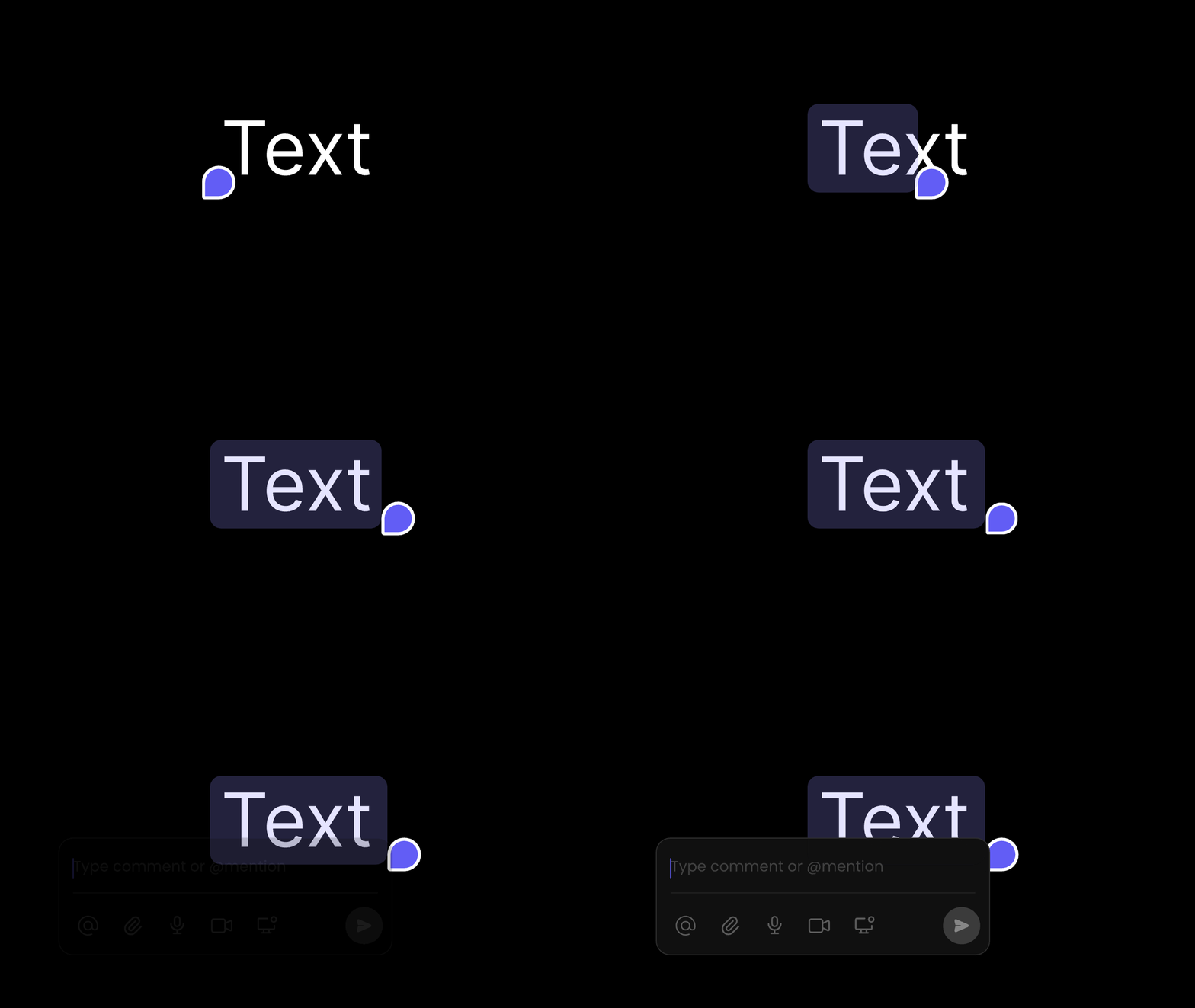
Text mode allows users to select any text and attach comments to it similar to Google Docs.
```js theme={null}
```
Test it out by opening the page with Velt components in your browser.
Select any text, a `Comment Tool` button will appear near the highlighted text. Click on it to add a comment.
Import the `VeltComments` component.
```js theme={null}
import { VeltProvider, VeltComments } from '@veltdev/react';
```
Add the `VeltComments` component to the root of your app.
This component is required to render comments in your app.
Text mode is enabled by default. To disable it, set the `textMode` attribute to `false`.
Text mode allows users to select any text and attach comments to it similar to Google Docs.
```js theme={null}
```
Test it out by opening the page with Velt components in your browser.
Select any text, a `Comment Tool` button will appear near the highlighted text. Click on it to add a comment.
 Add the comment component to your template. Try to put it as close to the root level of your ``.
This component is required to render comments in your app. Text mode allows users to attach comments to highlighted text.
```html theme={null}
```
Test it out by opening the page with Velt components in your browser.
Select any text, a `Comment Tool` button will appear near the highlighted text. Click on it to add a comment.
```jsx React / Next.js theme={null}
import { VeltProvider, VeltComments } from '@veltdev/react';
export default function App() {
return (
);
}
```
```html HTML theme={null}
Comment documentation
```
Add the comment component to your template. Try to put it as close to the root level of your ``.
This component is required to render comments in your app. Text mode allows users to attach comments to highlighted text.
```html theme={null}
```
Test it out by opening the page with Velt components in your browser.
Select any text, a `Comment Tool` button will appear near the highlighted text. Click on it to add a comment.
```jsx React / Next.js theme={null}
import { VeltProvider, VeltComments } from '@veltdev/react';
export default function App() {
return (
);
}
```
```html HTML theme={null}
Comment documentation
```