You need a text editor in your React Native app that handles more than plain text. The standard TextInput component won't help you here because it can't render or manipulate formatted content. That's why developers use react native text editors that combine web and native approaches. Your choice depends on what formatting you need, how fast it needs to run, and whether you want features like real-time collaboration built in.
TLDR:
React Native lacks a built-in rich text editor; you'll use WebView wrappers, native modules, or TextInput extensions
WebView editors like react-native-pell-rich-editor create input lag because keystrokes pass through the bridge
Store content as uncontrolled state and extract HTML only when saving to prevent typing delays in large documents
Velt SDK adds real-time comments, live cursors, and notifications to your editor without building sync infrastructure
What is a React Native Text Editor
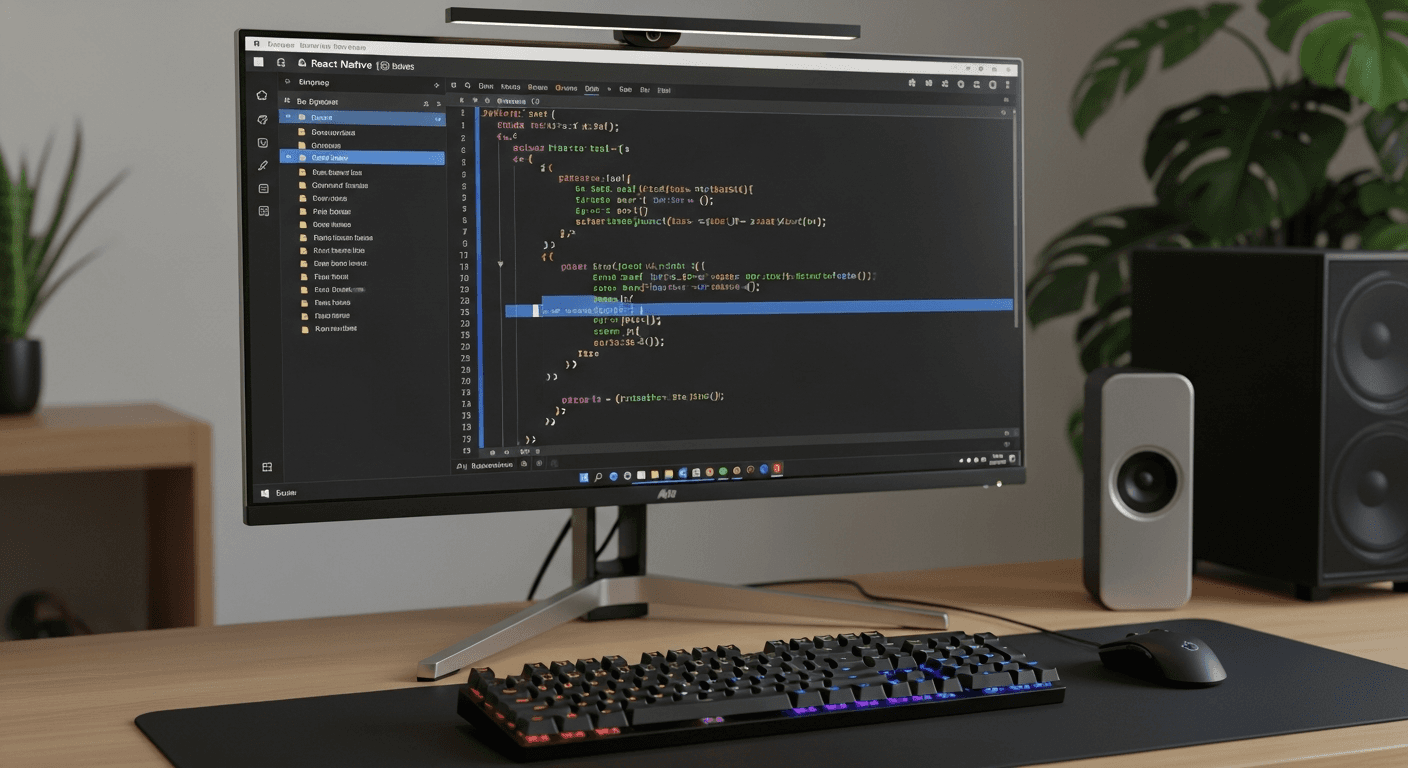
A React Native text editor is a component that lets users input and format text within your mobile app. Unlike the standard TextInput component that handles plain text, these editors support rich formatting like bold, italics, lists, and links.
React Native doesn't include a built-in rich text editor. The core TextInput handles basic text entry but can't render or manipulate formatted content. This happens because rich text editing requires complex DOM manipulation and contenteditable APIs that don't map to native mobile views. Most developers use hybrid approaches that bridge web and native capabilities. You'll typically use WebView components that render HTML editors or build custom native modules wrapping native text editing frameworks.
The solution you choose depends on your formatting requirements, performance needs, and whether you need features like collaborative editing or real-time sync.
Core Implementation Approaches for React Native Text Editing
You have three paths for building a React Native text editor, each with different tradeoffs:
WebView-based. This approach embeds web editors like Quill or TinyMCE inside a WebView component. You get rich formatting capabilities by reusing HTML editors.
Native module wrappers. Wrapping native iOS (UITextView) and Android (EditText) frameworks through custom modules delivers the best performance and native feel. Text responds immediately to touch and keyboard input.
You'll write platform-specific code and handle formatting differences between iOS and Android yourself, which takes more development time. If you need real-time features, you might also consider WebSockets in React patterns that can be adapted for React Native.
TextInput-based. Some libraries extend React Native's TextInput with custom rendering logic for formatting. This hybrid keeps you in JavaScript while maintaining decent performance. You can handle basic styles but advanced features like tables or nested lists become difficult to implement.
For the purposes of this guide, we are going to take the WebView-based approach as native approaches require OS-specific coding. Using a WebView-based approach is a single solution that can be deployed across platforms.
Getting Started with WebView: Choosing Your Library
The two main WebView-based libraries are react-native-pell-rich-editor and react-native-webview-quill. Both wrap HTML editors in a WebView and expose formatting controls through React Native components:
react-native-pell-rich-editor packages the lightweight Pell editor, giving you basic formatting (bold, italic, lists, links) with minimal overhead. The editor loads quickly but lacks tables or collaborative editing hooks. You communicate between the editor and your React Native code through injected JavaScript, which adds latency to each formatting action.
react-native-webview-quill wraps the Quill editor, offering more formatting options and better extensibility. Quill's delta format makes it easier to sync content across devices or add real-time collaboration. The tradeoff is a larger bundle size and slower initial render on Android devices with limited memory.
Both libraries share the same limitation: every interaction passes through the React Native bridge, creating input lag when users type quickly because keystrokes travel from native code to JavaScript to WebView and back. This is especially noticeable on lower-end Android devices.
Building the Rich Editor Component
As part of your reactive native text editor, you'll want to support rich formatting. The key to this is to store HTML content in component state using useState and then initializing it with your default or saved content. To do this, you will want to start with a ref to the editor instance for calling formatting methods and extracting content when needed.
To make this happen, you'll need to create three handler functions:
A content change handler that updates state on each edit, receiving HTML from the editor and syncing it to your app state
An initialization handler that fires when the WebView loads, controlling when to inject initial content
A focus handler that manages keyboard behavior
The key for improving performance and the user experience is to wait for the WebView's onLoad event before injecting initial content. That's because sending HTML to an editor that hasn't rendered yet causes sync issues. To prevent user interaction prior to loading, set a loading flag during this window.
Finally, you'll want to keep content state at the parent component level instead of inside the editor wrapper. This lets you validate, autosave, or sync content without querying the editor directly. When users navigate away, read from state instead of extracting HTML from the WebView.
Implementing the Rich Toolbar
Part of any react native text editor is the toolbar, which provides users access to formatting functions they would find in any text editor, triggering formatting methods on the editor ref. Here are a few simple steps you can take to implement a toolbar in your WebView-based react native text editor:
First, building the toolbar is as simple as defining an array of actions mapping button labels to editor commands like bold, italic, insertBulletList, or insertLink.
Second, you'll need to render each action as a TouchableOpacity that calls the corresponding editor method through the ref you passed from the parent component. Most WebView editors expose these methods via postMessage, so your button handler sends the command string across the bridge to execute in the WebView context.
Third, you should consider how to handle screen width and the impact on the toolbar. You can wrap toolbar buttons in a ScrollView for smaller devices. This prevents cramped spacing or cut-off buttons on phones while letting tablet users see all options at once. Use flexWrap with a maxWidth check if you prefer a multi-row toolbar that adapts to available space.
Finally, add visual feedback showing active formatting states. Query the editor for current selections and highlight toolbar buttons when text under the cursor has that format applied. This requires listening to selection change events from the editor and updating button styles accordingly, though the bridge delay means the highlight might lag behind fast cursor movement.
Handling HTML Content and Rendering
WebView-based editors store content as HTML strings, which works for persistence but creates friction when rendering that content outside the editor. Displaying formatted text in native views requires parsing HTML and mapping tags to React Native components.
The simplest approach to handling HTML content and rendering is to use react-native-render-html, which converts HTML strings to Text and View components. This library handles basic tags like p, strong, em, and ul without requiring a WebView.
But there are considerings for HTML content. For instance, iOS handles HTML parsing slower than Android. Converting a 5,000-character HTML document with multiple formatting layers can block the main thread for several hundred milliseconds on older iPhones. Cache parsed results when content doesn't change frequently, or render content in a WebView if you only need display without native scrolling or layout integration. The key is to normalize HTML before parsing by removing unnecessary div wrappers or inline styles that don't affect visual output. Simpler HTML trees parse faster and produce fewer React Native components.
Performance Optimization Techniques
Let's face it: performance is key for text editors in mobile environments. Failing to account for it can create frustrating user experiences. Below are a few recommendations for optimizing the performance of WebView-based react native text editors:
Model your editor as an uncontrolled component instead of syncing HTML to React state on every keystroke. When users type quickly in large documents, serializing and transmitting the entire content across the bridge creates noticeable input lag.
Let the WebView manage its own state and only extract content when you need to save or submit. Add a ref method that retrieves HTML on demand instead of continuously updating parent state. The Expo rich text editing guide recommends this pattern to keep typing responsive.
For large documents exceeding several thousand words, consider lazy loading or pagination if your use case allows it. Rendering and parsing massive HTML strings blocks the JavaScript thread during initial load and when switching between edit and preview modes.
Debounce autosave operations to reduce bridge traffic. Wait 2-3 seconds after the last keystroke before extracting and saving content to cut unnecessary serialization while still protecting user work.
Platform-Specific Considerations
iOS and Android handle WebView editors differently, requiring platform-specific adjustments:
On iOS, wrap your editor in KeyboardAvoidingView with behavior set to "padding" to prevent the keyboard from covering input. Android handles this automatically through windowSoftInputMode adjustments in AndroidManifest.xml, set to adjustResize.
WebView performance varies between platforms. Android devices struggle with hardware acceleration when rendering complex HTML editors, causing flickering or janky scrolling. Set androidHardwareAccelerationDisabled={false} on your WebView to access GPU rendering, though this increases memory usage on budget devices.
Keyboard dismissal requires different handling. iOS respects Keyboard.dismiss() calls, while Android needs the WebView to blur its contenteditable element through injected JavaScript before the keyboard retracts reliably.
Managing Images and Media Content
Of course, you may want to handle images and other media content within your text editor. There are special considerations when doing so:
WebView editors handle images through a setImage method that accepts base64 strings or URLs. Pass this method through your editor ref when users select media. Convert local images to base64 before sending them across the bridge to prevent file system access issues inside the WebView.
Images expand document size, which slows HTML serialization and parsing. A 2MB photo encoded as base64 becomes roughly 2.7MB of text inside your HTML string, creating lag during saves. Resize images before insertion (maximum widths around 1200px) to balance quality and performance.
Media affects line height calculations and causes layout shifts as images load asynchronously. Set explicit height attributes on img tags to reserve space and prevent text reflow during editing.
A Note on React Native's New Architecture and Text Editing
React Native's new architecture delivers faster rendering and lower latency through Fabric and TurboModules:
Fabric introduces a synchronous layout system that replaces the old shadow tree, reducing frame drops during scroll and improving mount times for WebView-based editors navigating long documents.
TurboModules shift from initializing all native code at launch to loading modules on demand. Custom native wrappers around iOS or Android text frameworks see lower initialization overhead. JavaScript-to-native communication switches from asynchronous bridge messages to direct function calls, cutting latency when applying formatting or extracting content.
But, before upgrading React Native past 0.68, verify that your WebView wrapper and native modules support Fabric.
Adding Collaboration Features to Your Text Editor

Real-time collaboration turns a single-user text editor into a space where multiple team members can write, review, and discuss content at the same time using features like a commenting SDK. Velt's SDK adds commenting, live presence, and notifications to your React Native editor without requiring you to build WebSocket infrastructure or conflict resolution logic.
After installing the Velt SDK, wrap your editor component with Velt's provider and initialize it with your API key. The SDK handles connection management and data sync automatically.
Contextual Comments
Users can highlight text and leave feedback directly on specific passages. This keeps discussions attached to the exact content being reviewed instead of scattered across external tools. Comment components render as overlays or sidebar threads that match your app's design system.
Live Cursors
Color-coded cursors show where other users are actively editing within the document. Each collaborator's cursor displays their name, helping teams avoid editing conflicts. The SDK tracks cursor positions and selections through the same mechanisms that power multiplayer editing in Google Docs.
In-App Notifications
Alerts notify users when someone mentions them, replies to their comment, or makes changes to shared content. These notifications surface within your app's UI, keeping collaborators engaged without switching to email or messaging apps.
Final thoughts on React Native rich text editors
Choosing a React Native text editor means balancing features against performance constraints. WebView approaches let you ship faster with full formatting support, but native implementations feel more responsive when users type quickly. Pick the simplest solution that handles your formatting requirements and worry about optimization only when you see actual performance problems in testing.
FAQ
How do I choose between WebView and native module approaches for my React Native text editor?
WebView solutions like react-native-pell-rich-editor get you rich formatting quickly but introduce input lag through bridge communication. Native modules wrapping UITextView or EditText deliver immediate keyboard response and native feel but require platform-specific code for iOS and Android.
What causes input lag in WebView-based text editors?
Every keystroke travels from native code to JavaScript to the WebView and back through the React Native bridge. This round-trip creates noticeable delay when typing quickly, especially on lower-end Android devices with limited memory.
Can I add real-time collaboration to a React Native text editor?
Yes, Velt's SDK adds live cursors, contextual comments, and presence indicators to your editor without building WebSocket infrastructure yourself. The SDK handles connection management and conflict resolution automatically.
Why does my editor slow down with large documents?
Serializing and transmitting entire HTML content across the bridge on every keystroke blocks the JavaScript thread. Let the WebView manage its own state and only extract content when saving, instead of syncing to React state continuously.
How does React Native's new architecture improve text editing performance?
Fabric's synchronous layout system reduces frame drops during scroll and improves WebView mount times. TurboModules replace asynchronous bridge messages with direct function calls, cutting latency when applying formatting or extracting content.